
Can a Chromebook run SKlauncher?
Yes, on many recent Chromebooks that support the Linux development environment. SKlauncher is a desktop Java launcher, so it does not install as an Android app, Chrome extension or ChromeOS package. You run the universal JAR inside Google’s Debian-based Linux container.
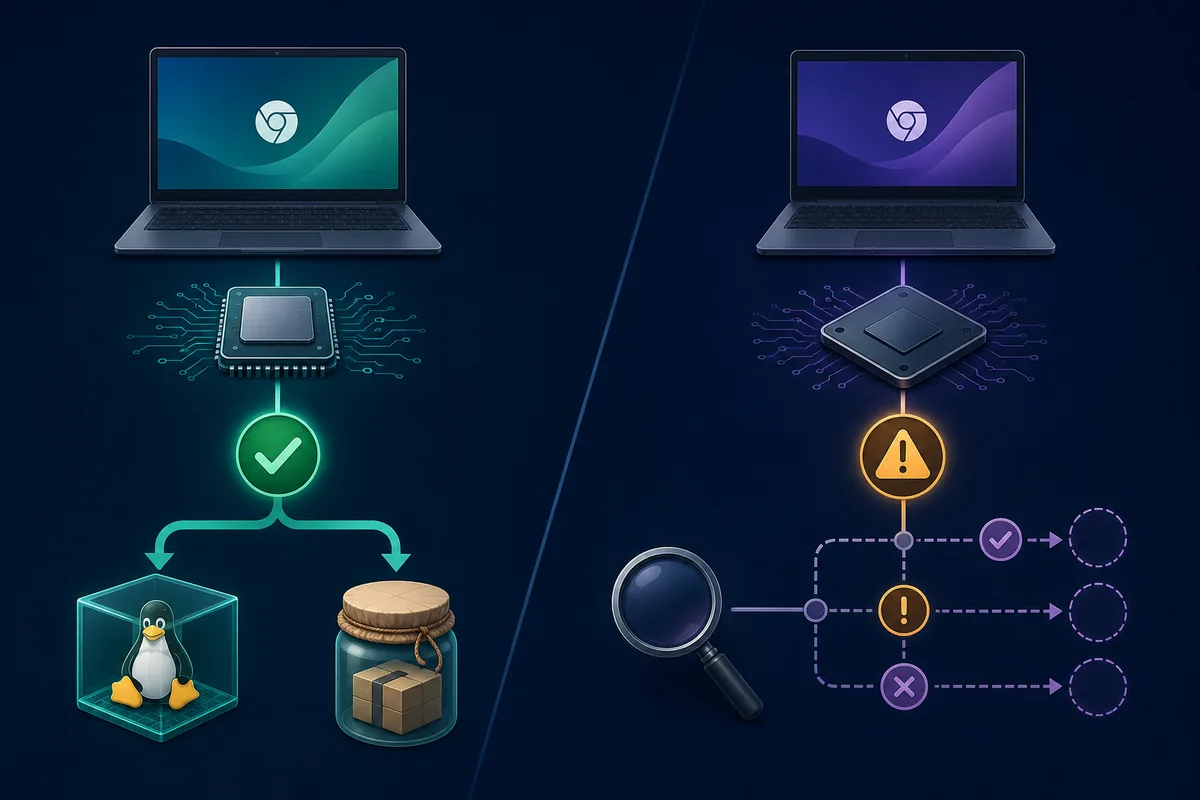
Intel and AMD Chromebooks generally provide the most predictable Java and Minecraft compatibility. ARM models may run Java, but individual game versions, native libraries, loaders or mods can still fail. School-managed devices may block Linux entirely.
- Do not download an APK: SKlauncher does not publish an official Android package.
- Confirm Linux is available under ChromeOS developer settings.
- Check whether the processor is Intel/AMD or ARM before choosing runtimes and mods.
Before you install
Update ChromeOS, keep at least 8–12 GB of free local storage and back up important worlds. Linux files occupy internal storage, and a large modpack can need several additional gigabytes.
Open Settings, search for the Linux development environment and verify that the setup button is available. If it is missing on a managed Chromebook, ask the administrator; bypass instructions are neither safe nor reliable.
- Use a personal, supported Chromebook when possible.
- Keep the JAR filename unchanged so verification is easier.
- Plan extra space for Java, game assets, worlds and modpacks.
| Check | Recommended | Why |
|---|---|---|
| Processor | Intel or AMD | Best native-library compatibility |
| Memory | 8 GB or more | Leaves room for ChromeOS and Minecraft |
| Storage | 12 GB free minimum | Linux, Java and game files grow quickly |
| Management | Personal device | Schools may disable Linux |
Enable Linux on ChromeOS
In ChromeOS Settings, open the developer section and choose the Linux development environment setup. Accept the default Debian container unless you have a specific reason to change its disk allocation.
When Terminal opens, update the package list. The Linux container is separated from ChromeOS, so place the downloaded JAR in Linux files or share the Downloads folder with Linux.
Turn on Linux
Open Settings, find the Linux development environment and complete the guided setup.
Update packages
Run
sudo apt update && sudo apt upgrade -yin Terminal.Share the file
Move the verified JAR to Linux files or enable Linux sharing for Downloads.
Install Java 21 and verify the file
SKlauncher 3.2.18 currently requires Java 21 for the launcher. Install a supported Java 21 build inside the Linux container, then confirm java -version reports version 21 before starting the JAR.
The first-party JAR checked on July 22, 2026 returned HTTP 200, the Java archive MIME type and a size of 1,401,788 bytes. Compare the SHA-256 value shown above before launch; do not trust a similarly named file from a mirror.
Install Java
Use a Java 21 package available for your Chromebook architecture, or download Temurin 21 from Adoptium.
Check the runtime
Run
java -version; the major version should be 21.Verify SHA-256
Run
sha256sum SKlauncher-3.2.18.jarand compare the full result.Start SKlauncher
Run
java -jar SKlauncher-3.2.18.jarfrom the file directory.
Intel, AMD and ARM differences
An Intel or AMD Chromebook is the lowest-risk choice because Java Edition launchers, game libraries and most mod loaders primarily target x86-64 desktop systems. Start with vanilla Minecraft and add Fabric, Forge, shaders or modpacks only after the base game works.
ARM Chromebooks need more caution. A matching ARM64 Java runtime is only the first requirement; Minecraft versions or bundled native components may still target x86-64. If a clean vanilla profile fails with an architecture error, do not download random replacement libraries.
- Intel/AMD: use the standard Linux JAR path and test vanilla first.
- ARM: verify every runtime and native dependency supports ARM64.
- Low-memory models: reduce render distance and avoid heavy modpacks.
- Managed devices: Linux or file sharing may be unavailable.
Common Chromebook problems
If Terminal says “java: command not found,” Java is missing inside the Linux container even if an Android Java app is installed. If the JAR does nothing, run it from Terminal so the error remains visible.
Poor performance usually comes from limited RAM, storage pressure or graphics overhead rather than the launcher download. Test a clean profile, lower render distance and avoid shaders before changing Java or replacing the launcher file.
- Permission denied: run the JAR with
java -jar, not as a native executable. - Wrong Java version: remove conflicting defaults or select Java 21.
- Architecture error: verify the Chromebook CPU and game native libraries.
- No Linux option: check device support and administrator policy.
Is SKlauncher on Chromebook worth trying?
It is reasonable on an Intel or AMD Chromebook with Linux support, 8 GB of memory and enough local storage. The process is more technical than Windows or macOS because ChromeOS is hosting a Linux desktop application.
For ARM, school-managed or very low-spec Chromebooks, treat the setup as experimental. Use only the verified first-party JAR, keep Microsoft and Minecraft credentials private, and stop if a guide requires unofficial APKs, cracked bundles or unknown native libraries.
Short answer
Use ChromeOS Linux, Java 21 and the verified universal JAR; test vanilla before mods.
Chromebook installation checklist
Use ChromeOS Linux, Java 21 and the verified universal JAR. Test a clean vanilla profile before mods or modpacks.
- Confirm the Linux development environment is available.
- Prefer Intel or AMD hardware for compatibility.
- Verify the JAR SHA-256 before launch.
- Do not use unofficial SKlauncher APK files.
SKlauncher Chromebook FAQ
Does SKlauncher work on Chromebook?
It can work on Chromebooks that support the Linux development environment. There is no native ChromeOS or official Android APK version.
Can I install SKlauncher from Google Play?
No. Use the verified universal JAR inside ChromeOS Linux, not an Android app or extension.
Which Java version is required?
The stable 3.2.18 launcher requires Java 21. Individual Minecraft profiles may manage additional runtimes.
Does it work on ARM Chromebooks?
Possibly, but Java, game versions and native libraries must all support ARM64. Intel or AMD is more predictable.
Why is SKlauncher slow on my Chromebook?
ChromeOS, the Linux container and Minecraft share limited memory and storage. Test vanilla, lower graphics settings and avoid heavy packs.
Is the download official?
The CTA uses the first-party skmedix.pl JAR verified on July 22, 2026; the official stable page still listed version 3.2.18.
Sources and verification
This guide uses current first-party information checked on July 22, 2026.
Official stable SKlauncher downloads Google: Set up Linux on Chromebook Google: Minecraft on Chromebook Adoptium Temurin Java 21 releases