
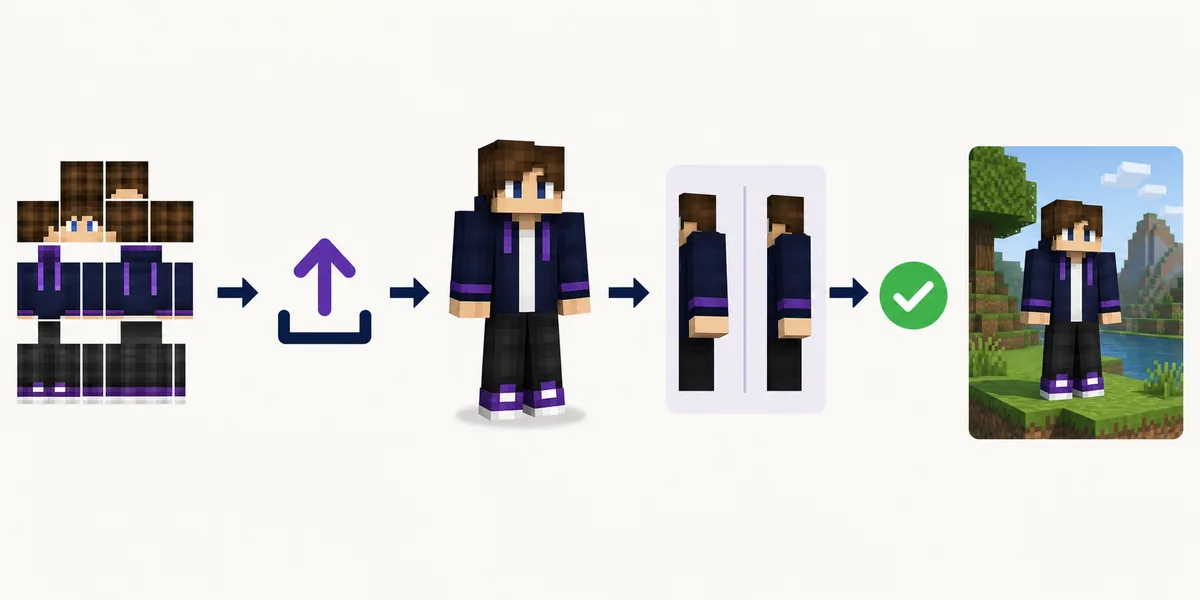
Upload a skin through the official customization page
Use the official SKlauncher customization page rather than placing a random PNG in a game folder. Sign in to the SKlauncher account used in the launcher, choose the skin field and upload the skin you want to use.
After the preview loads, check the arm model before saving. Apply the change, close Minecraft completely and restart SKlauncher so the launcher can request the current account appearance.
Prepare the PNG
Use a standard Java Edition skin image from a source you trust.
Open customization
Sign in at the official SKlauncher customization page.
Choose the model
Select Slim only when the skin was designed for narrow arms.
Save and restart
Restart both SKlauncher and Minecraft before testing.
Do not run a skin installer
A normal skin is an image file. An EXE, browser extension or unknown installer is not required to apply it.
Choose Classic or Slim without broken arms
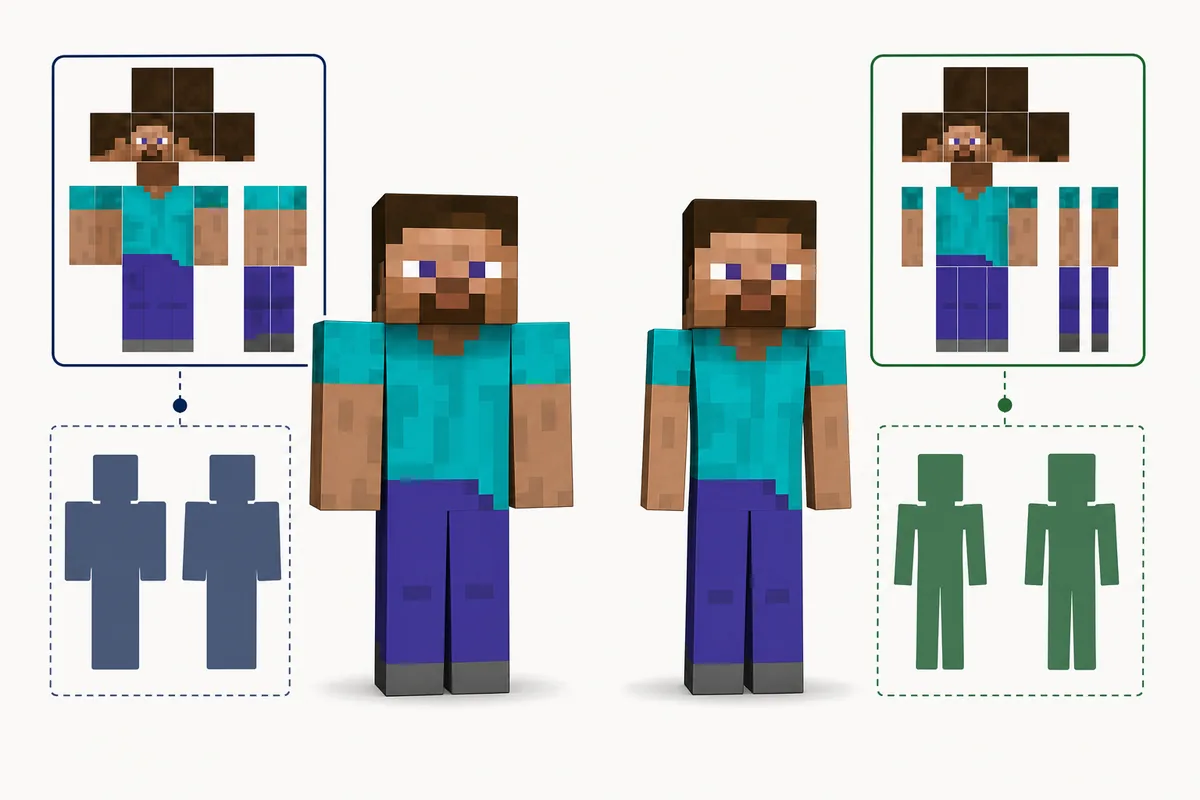
The model setting changes the width of each arm. Classic uses wider Steve-style arms, while Slim uses narrower Alex-style arms. The wrong setting can make outer arm pixels look shifted or missing.
If the source does not name the model, preview both choices and save only when sleeves and hands align correctly.
| Model | Use it when | Typical problem if wrong |
|---|---|---|
| Classic | The skin has wider four-pixel arms | Slim artwork appears stretched |
| Slim | The skin has narrow three-pixel arms | Classic sleeves look clipped or offset |
Add a cape and understand who can see it
The official FAQ uses the same customization workflow for capes: upload the cape in its dedicated field and save it to the account. A cape should not require a separate executable installer.
SKlauncher states that skins and capes are visible when the other players on the server also use SKlauncher. Do not assume universal visibility to players using every launcher.
- Confirm the skin or cape is visible in website account settings.
- Ask whether the other player also uses SKlauncher.
- Restart the launcher and Minecraft after changing appearance.
- Treat animated capes as mod-dependent rather than built in.
Visibility has a launcher condition
A successful upload does not mean every player on every launcher will see the same cosmetic.
Fix an SKlauncher skin that is not showing
Start with the website account: if the correct skin is not shown there, upload it again. If it is shown, exit the game and launcher, reopen SKlauncher with the same account and test a clean profile.
The official FAQ notes that Compatibility mode disables the skin function. Also recheck Classic or Slim and remember that unsupported transparent areas need a suitable mod.
| Symptom | Likely cause | What to do |
|---|---|---|
| Default skin remains | Old session or different account | Verify account appearance, then restart |
| Arms look wrong | Classic or Slim mismatch | Switch the model and save again |
| Friends cannot see it | They use another launcher | Test with another SKlauncher user |
| Skin disappears in Compatibility mode | Skin feature is disabled | Turn Compatibility mode off when possible |
Change one variable at a time
Do not delete worlds, mods or entire game folders to fix an account cosmetic. Verify the account, model, mode and restart sequence first.
Use safe skin files and realistic expectations
Prefer a standard 64×64 Java Edition PNG from the official SKlauncher skins library, your own editor or a reputable skin community. Keep the original file so you can restore it if an edit breaks alignment.
Java Edition does not display fully transparent skins by default, and SKlauncher says it does not add a built-in mod for transparent skins or animated capes. Those effects require a compatible mod.
- Use PNG rather than an executable skin installer.
- Keep the file source and original copy.
- Preview both front and back before saving.
- Use mods only when a transparent or animated effect is required.
This page is independent
SKlauncherDownload.wiki is not the launcher developer. Complete account changes on the first-party SKlauncher website.
SKlauncher skin checklist
The reliable workflow is official customization page → trusted PNG → correct Classic or Slim choice → save → full restart. If the appearance is still missing, verify the website account and Compatibility mode.
Skin customization has distinct intent from this site's download, installation, Java and mod pages, so it is covered in a dedicated guide.
- Official customization page used
- Correct arm model selected
- Website account preview checked
- Launcher and Minecraft restarted
SKlauncher skin FAQ
How do I change my skin in SKlauncher?
Sign in on the official customization page, upload the skin PNG, choose Classic or Slim, save it and restart SKlauncher and Minecraft.
Where can I find SKlauncher skins?
Use the official SKlauncher skins page or a trusted Java Edition skin source, then upload the PNG through customization.
Why is my SKlauncher skin not showing?
Check website account settings, restart the launcher and game, confirm the same account, turn off Compatibility mode when possible and verify the model.
Can other players see my SKlauncher skin and cape?
The official FAQ says players using SKlauncher together can see those cosmetics. Other launchers are not guaranteed.
Can SKlauncher show transparent skins or animated capes?
Not by default. The official FAQ says those effects need an appropriate mod.
Sources and verification
This guide uses current first-party information checked on July 16, 2026.
Official SKlauncher customization Official SKlauncher FAQ Official SKlauncher skins library Minecraft Java skin customization help