
What to check first when SKlauncher will not log in
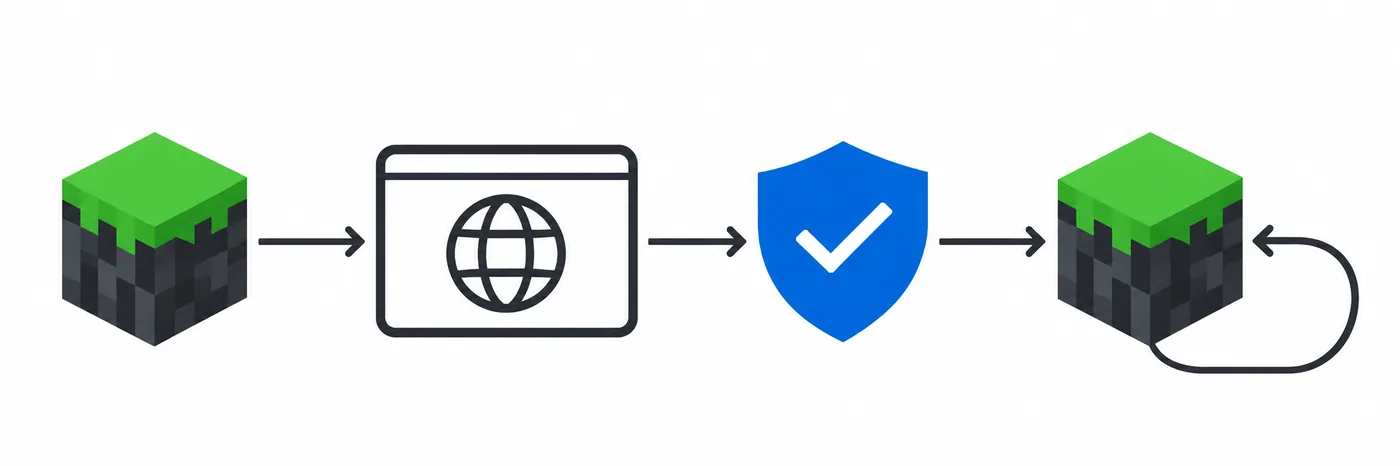
Use the Microsoft account that owns Minecraft: Java Edition. In SKlauncher choose Login with Microsoft, finish sign-in on Microsoft, approve the documented ReLogin prompt, close the local confirmation tab when it says you can, then return to the launcher. Enter passwords only on a genuine Microsoft page.
SKlauncher login errors usually point to one of three stages: account profile, browser return or Minecraft session. This guide covers online authentication; offline play, installation and website skin management have separate guides below.
- Confirm the Microsoft account before approving.
- A Microsoft sign-in alone does not prove Java Edition access.
- Offline mode does not repair ownership or online authentication.
A quick distinction
The launcher checks the Microsoft-linked Minecraft profile. A website skin account cannot grant a Java Edition license.
Run these checks before retrying
Change one thing at a time. This sequence narrows common SKlauncher login errors before you change files. Close Minecraft and SKlauncher before a clean retry, and note the exact message instead of opening several browser flows.
Do not delete .minecraft, clear all browser credentials or disable protection first. Those steps can remove worlds or weaken security without fixing ownership.
Close the attempt
Exit Minecraft and SKlauncher. Finish consent first if the Microsoft page is still waiting.
Confirm the account
Choose the Microsoft account with Java Edition access, not simply a Windows or Xbox account.
Check service status
If Xbox or Minecraft sign-in is down, wait before changing files or reinstalling.
Initialize a Game Pass profile
SKlauncher docs note that some Game Pass accounts need one setup in the official Minecraft Launcher.
Retry once
Note whether the browser opened, consent finished, the local page returned and SKlauncher changed state.
If a service is down
Wait for recovery; a reinstall cannot fix an authentication outage.
Match the error to the next safe action
Use this table to match SKlauncher login errors to a first check. A browser that never returns suggests a callback problem; a completed return followed by a missing profile points to account ownership or profile setup. A server error happens later.
These are first checks, not guaranteed fixes. Save different wording for support and keep private account details out of public posts.
| What you see | Most useful first check | What not to do |
|---|---|---|
| No Minecraft profile found | Check Java Edition ownership; some Game Pass accounts need one setup in the official Minecraft Launcher. | A website profile does not add game ownership. |
| Sorry, we could not log you in | Check Xbox status, restart and confirm the account before one retry. | Do not retry through an outage or use a bypass. |
| Browser returns but SKlauncher stays signed out | Finish consent, close the local confirmation page and return to the same launcher. | Do not close consent early or enter a password in a launcher popup. |
| Invalid session or profile-key error | Check Xbox status, restart both apps, then sign out and back in once. | Do not delete worlds or profiles. |
| Microsoft asks for age or family consent | Follow Microsoft's account or family organizer instructions. | Do not bypass family restrictions or alter a birth date. |
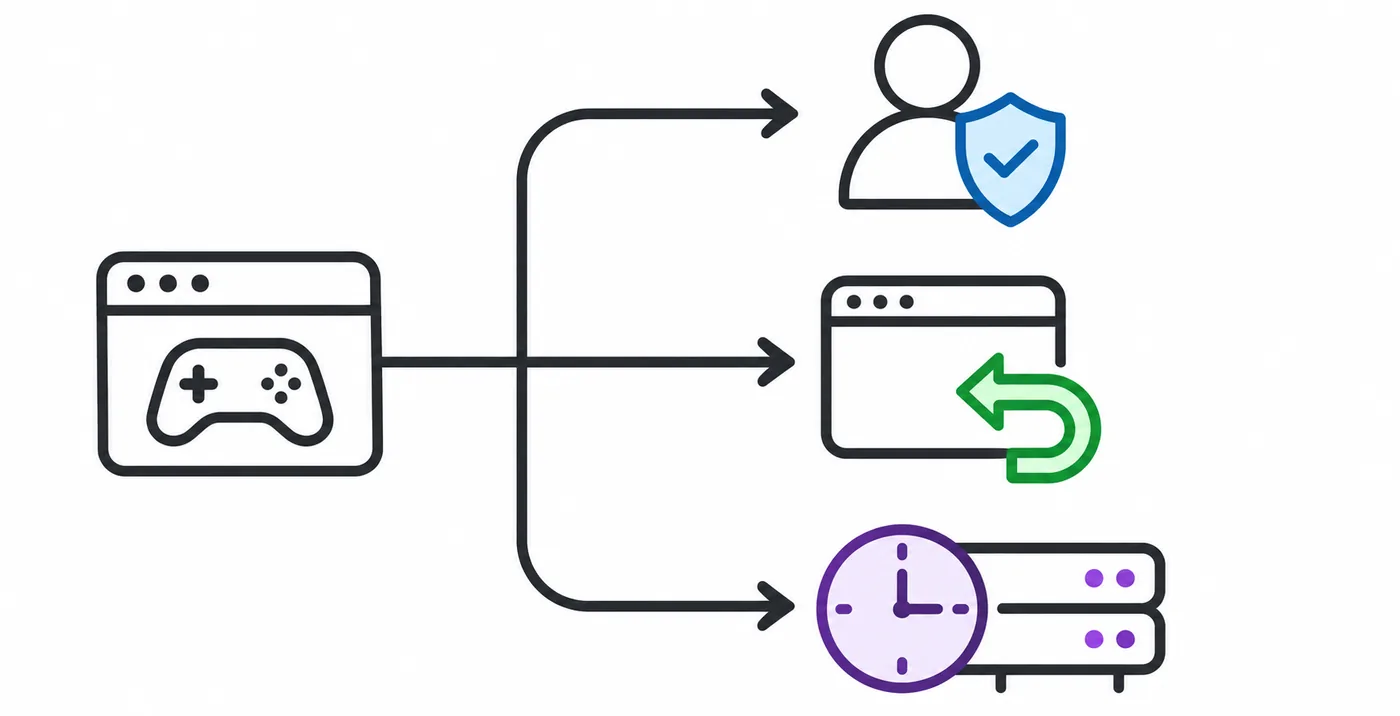
Keep ownership separate from sign-in
A correct password identifies the account; the launcher still needs an eligible Java profile.
Complete the Microsoft login flow in the expected order
The documented flow opens a browser and returns an authorization result to SKlauncher after the ReLogin consent step. Page wording can change, so verify the Microsoft host and account rather than relying on an old video.
If the host or application name is unexpected, stop and check current SKlauncher documentation. Never share a token from a callback URL, log or developer tools.
Start in SKlauncher
Choose Login with Microsoft to open the matching sign-in request.
Use the Microsoft page
Choose the account with Java access and complete its official verification.
Review consent
Approve ReLogin only if it matches current SKlauncher documentation.
Return to the launcher
Close the local completion tab when allowed and check the account in the same launcher window.
The browser is part of the flow
The local callback must finish before SKlauncher can receive the sign-in result.
Fix a missing Minecraft profile or entitlement
For SKlauncher login errors that say no profile was found, check the account shown on Microsoft's page. With multiple accounts, sign out of the wrong one and restart the flow with the Java Edition owner.
For Game Pass, SKlauncher docs say that opening the official Minecraft Launcher once may initialize the profile. Follow Microsoft instructions for age, family or purchase restrictions; the launcher cannot remove them.
- Verify the Microsoft account and any sign-in alias.
- Confirm Minecraft: Java Edition access, not only Windows or Xbox sign-in.
- Restart SKlauncher after profile setup and retry once.
- Sign-in cannot create a license; follow account and server rules.
Do not share account access
Support does not need your password, recovery code or token.
When the browser opens but the launcher does not return
Browser-return SKlauncher login errors often mean Microsoft is still waiting for approval. Finish that step, wait for the local confirmation page, then return to the original SKlauncher window instead of starting another flow.
If no browser opens, check the operating system's default browser and connection. If the wrong account is selected, sign out there before one retry. Do not install an authentication helper.
Check the page
Verify the Microsoft sign-in host and selected account before entering credentials.
Finish consent
Keep the consent page open until approval completes; close only the local completion tab.
Review a narrow network rule
If security software blocks a trusted launcher or Java file, check its log and adjust only that rule. Do not disable protection.
Avoid destructive resets
A callback issue does not show that game files or worlds are corrupt. Preserve them.
Resolve an invalid session after sign-in
Some SKlauncher login errors appear only after Minecraft reports Invalid session or an invalid profile signature. The game session may have expired or a service response may be failing. SKlauncher docs recommend checking Xbox status, restarting both apps, then signing out and back in.
Try that before reinstalling or deleting data. If only one server fails, record that detail; a launcher sign-in does not guarantee that every server accepts the same account mode.
Check Xbox status
Wait if authentication services are degraded.
Restart both apps
Close Minecraft and SKlauncher, then open the profile again.
Refresh the session
If needed, sign out and complete one fresh Microsoft login.
Keep the error stage clear
Launcher login fails before game start; an in-game session error happens later.
Share useful logs without exposing private credentials
If SKlauncher login errors remain, record the exact message and stage: before Microsoft, during consent, after callback or after Minecraft starts. Include your operating system and whether Xbox services were available.
Before sharing a log, remove email addresses, personal paths, callback URLs and any access or refresh token. Never post a full authentication response.
Keep the message
Copy the exact wording or code.
Describe one attempt
Say whether consent completed and what SKlauncher displayed; omit passwords.
Redact the log
Remove email and token-like strings before sharing; keep a private copy.
Security first
SKlauncher docs warn against sharing access or refresh tokens. If exposed, follow Microsoft's account controls and SKlauncher security instructions.
When to stop and ask for account support
If SKlauncher login errors persist after a service check, correct account and one clean retry, contact Microsoft for purchase or family restrictions and SKlauncher support for a repeatable callback or profile error. Share only redacted details.
Use the offline guide for cached profiles, the installation guide for Java setup and the download-stuck page for file transfer. Matching the guide to the failure stage avoids unrelated resets.
A safe troubleshooting order
Use this order: verify the account and Java profile, check service status, complete browser consent, restart the same launcher session and record the remaining error.
- Keep tokens private.
- Preserve worlds.
- Follow Microsoft account restrictions.
Frequently asked questions about SKlauncher login errors
Why do SKlauncher login errors say no Minecraft profile was found?
Check that the selected Microsoft account owns Java Edition. Some Game Pass users may need one setup in the official Minecraft Launcher.
Do I need to approve ReLogin?
SKlauncher documents this consent step. Verify the app name against its current guide and keep sign-in tokens private.
The browser says complete, but SKlauncher stays signed out. What now?
Close the local completion tab, return to the same launcher and check the account. If needed, restart and retry once with the correct Microsoft account.
Can offline mode fix Microsoft sign-in?
No. Offline play is separate and does not fix ownership or an online session. See the offline guide for its limits.
How do I fix an Invalid session error?
Check Xbox status, restart Minecraft and SKlauncher, then sign out and back in once if needed.
Can I post a login log publicly?
Only after removing email addresses, callback URLs, passwords and access or refresh tokens.
Sources and verification
This guide uses current first-party information checked on November 5, 2026.
SKlauncher Docs: Microsoft login and common errors SKlauncher Docs: game session and profile-key errors Xbox Live service status Microsoft account: manage app permissions