

The short answer: edit the active installation
To learn how to allocate more RAM in SKlauncher, open the launcher, select the profile that you actually play, choose Edit, expand More Options and find the memory or maximum-memory control. Save the profile, start Minecraft and confirm the new ceiling in the debug screen. The exact label can vary by SKlauncher release, but the installation editor and More Options area are the useful landmarks. The official SKlauncher documentation places memory and Java arguments in that same advanced area.
This setting changes the Java heap available to that Minecraft instance; it does not increase the physical RAM in your computer. A vanilla world, a small Fabric profile and a 200-mod pack have different needs. Keep enough memory for Windows, macOS or Linux, the launcher, a browser and other background programs. If the game becomes less stable after you raise the value, lower it again instead of assuming the largest number is best.
Select the correct profile
Use the installation that produces the lag or out-of-memory message. A separate loader, version or game directory can have its own memory setting.
Open Edit and More Options
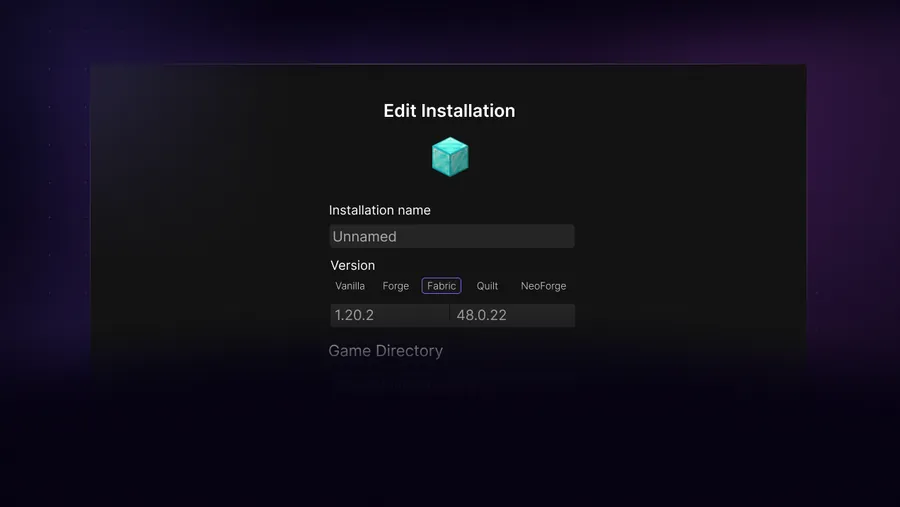
Open the installation editor and expand the advanced options. Look for memory, maximum memory or the JVM arguments area.
Save one measured change
Raise the limit by a small step, save, and keep the rest of the Java arguments unchanged until the profile is stable.
Launch and verify
Load the same world or modpack and use F3 to check the maximum memory value before making another change.
Launcher memory is not game performance by itself
RAM allocation can prevent a heap error, but it cannot repair a broken mod, slow disk, incompatible loader, weak graphics card or a server connection. Treat memory as one variable in a controlled test.
Where to change RAM in SKlauncher
The reliable workflow is profile-first. In the Installations Manager, identify the Minecraft version and loader, then open that installation's Edit screen. SKlauncher documentation shows the path through New installation or an existing installation, followed by More Options, where memory and Java arguments can be adjusted. You do not need to replace the launcher, install an APK or edit a random global file just to change the heap limit.
Record the setup
Note the Minecraft version, loader, modpack name and game directory. Do not compare a vanilla profile with a different modpack and call the result a memory test.
Open the installation editor
Choose Edit for that profile, then expand More Options. The memory control may be shown as a slider, a number in megabytes, or part of JVM arguments.
Keep arguments readable
If the screen exposes -Xmx, change only the maximum value, such as -Xmx4G or -Xmx6144M. Leave unrelated flags alone until you have a reproducible problem.
Save before launching
Save the profile, close any old Minecraft process, and launch the same installation. A running game can still use the previous value.
How to allocate more RAM in SKlauncher safely
Start with the modpack or mod author's requirement when one is published. If no number is available, use the table below as a conservative starting range, then watch actual usage. These are client heap targets, not promises of FPS. The official SKlauncher download page lists 4 GB minimum and 8 GB recommended for the launcher itself across current desktop platforms; that requirement describes the computer running the launcher and should not be copied blindly into every Minecraft instance.
- Check total physical RAM before editing a profile.
- Use the pack's documented minimum or recommended value when it is available.
- Keep a practical reserve for the operating system and applications.
- Raise memory in 1-2 GB steps and test the same workload each time.
- Lower the value when garbage-collection pauses, swapping or startup failures appear.
| Minecraft setup | Starting allocation | What to watch |
|---|---|---|
| Vanilla or a few client mods | 2-4 GB | A higher limit rarely fixes graphics or network lag. |
| Shaders or a light mod set | 4-6 GB | Check shader settings and GPU load as well as heap usage. |
| Medium modpack | 5-8 GB | Use the pack's own requirement and keep background apps limited. |
| Large 100+ mod pack | 6-10 GB | A slow disk, missing dependency or wrong loader can look like a RAM issue. |
| Very heavy pack | 8-12 GB only when documented | Do not allocate the whole machine; leave room for the OS and Java. |
More is not automatically faster
A large heap can make Java wait longer before cleaning unused objects. If frame pacing gets worse after an increase, return to the previous value and compare one change at a time.
Verify the allocation in Minecraft
A saved slider is not proof that the running game used the new value. Launch the same SKlauncher installation, enter a test world and press F3. The debug overlay includes a memory line similar to 1200/6144MB; the second number is the current maximum heap in megabytes. It may not use the whole amount, and the first number will move as the world loads. Compare the maximum with the value you saved, then close the overlay and test the actual scene or modpack that motivated the change.
If the maximum remains at the old number, check that you edited the correct profile, saved the installation and did not launch an older shortcut. Confirm that SKlauncher points to a 64-bit Java runtime when you need a larger heap. A Java version mismatch is a separate problem from a low memory limit, so use the site's Java requirements guide rather than adding random JVM flags.
Load a repeatable test
Use the same world, render distance, shader state and modpack screen for each comparison.
Read the F3 maximum
Look at the second number in the memory readout. It is the configured ceiling, not a promise that Minecraft will reserve it all immediately.
Observe real symptoms
Note startup time, stutter, out-of-memory messages and whether the modpack reaches the same menu or world.
Keep a known-good value
Write the working number beside the profile name so a future launcher or mod update can be compared against it.
Fix crashes, stutter and a limit that will not change
If Minecraft crashes immediately after an increase, lower the allocation and launch a clean profile. An operating system that starts swapping can feel slower even though the game has a bigger heap. If the log reports java.lang.OutOfMemoryError, the pack may need more memory or may have a leak; check the pack documentation before jumping to an extreme value. If the error names a loader, mod or missing dependency, RAM is not the first repair.
- Profile will not start: reduce the value, then confirm Java architecture and version.
- F3 still shows the old limit: edit the active profile, save it, and remove an old shortcut from the test.
- Out-of-memory error: follow the modpack requirement, remove a conflicting mod and inspect the log before adding more heap.
- Long pauses after increasing RAM: lower the value and compare garbage-collection behavior with the same workload.
- Only a shader or resource pack is slow: test vanilla first; memory is not the only rendering resource.
- Multiplayer fails: check the server version, loader, authentication and address separately from local RAM.
| Symptom | Likely cause | Next controlled check |
|---|---|---|
| Crash at launch | Too little free system memory, wrong Java or a broken mod | Lower the limit and launch a clean matching profile. |
| OutOfMemoryError while loading | Pack exceeds the heap or contains a leak | Check the pack requirement and log; add memory only if the machine has headroom. |
| Stutter after raising RAM | Heap is oversized or the system is swapping | Compare a 1-2 GB lower value with background apps closed. |
| F3 maximum never changes | Wrong installation or unsaved edit | Reopen the active profile's More Options screen and save. |
| Only multiplayer is broken | Server or compatibility issue | Test a local world, then match server version and loader. |
Keep a rollback profile
Duplicate or preserve one clean installation before changing a large modpack. A known-good profile makes it possible to tell a memory change from a loader, shader or dependency change.
SKlauncher RAM allocation FAQ
How to allocate more RAM in SKlauncher?
Select the Minecraft installation you use, open Edit, expand More Options and look for memory, maximum memory or JVM arguments. The official SKlauncher docs place memory and Java arguments in this advanced installation area.
How much RAM should I allocate to SKlauncher?
You allocate RAM to the Minecraft instance launched by SKlauncher, not to the launcher itself. Start around 2-4 GB for vanilla, 4-6 GB for light mods or shaders and 6-10 GB for larger packs, then follow the pack's documented requirement and leave headroom for the operating system.
Does giving Minecraft more RAM increase FPS?
Not automatically. More heap can prevent memory errors in a heavy pack, but FPS also depends on the graphics card, render distance, shaders, CPU, disk and mods. Too much heap can create longer garbage-collection pauses.
Why does SKlauncher still show 2 GB after I changed RAM?
You may have edited another installation, skipped Save, launched an old shortcut or changed a value that the running Java process did not receive. Reopen the active profile, save it, launch the same instance and check the second number in the F3 memory line.
Can I allocate 12 or 16 GB to a Minecraft modpack?
Only when the pack genuinely needs it and the computer has substantial unused memory. Large allocations can starve the operating system or create stutter. Test a measured value, keep a rollback and do not give Minecraft the whole machine.
Sources and verification
This guide uses current first-party information checked on October 24, 2026.
Official SKlauncher docs: Installing Fabric and More Options Official SKlauncher downloads and system requirements