
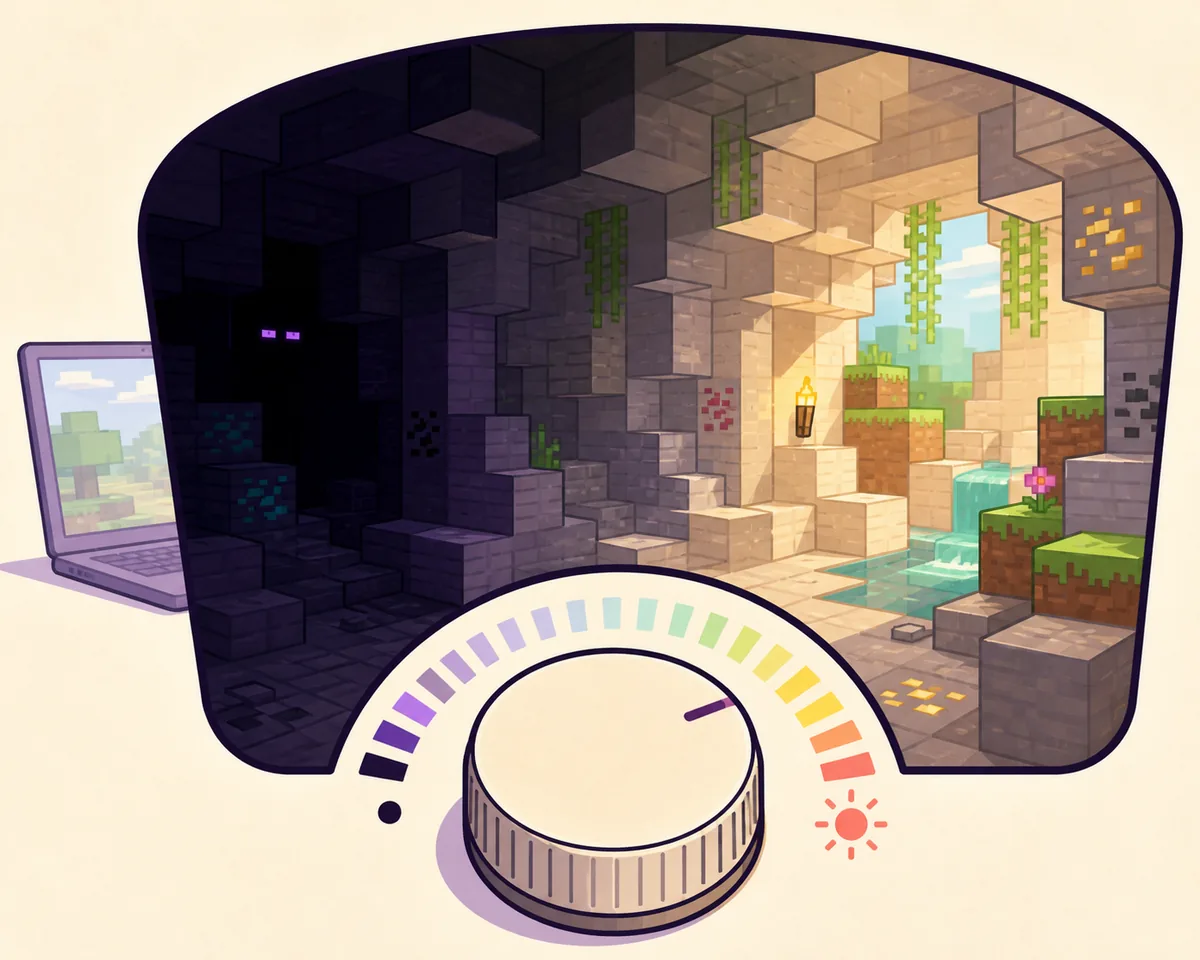
Use Minecraft brightness before changing files
The safest answer is simple: open the Minecraft installation you launch through SKlauncher, enter Video Settings and move the Brightness control toward Bright. SKlauncher is the launcher and profile manager; the gamma or brightness value belongs to the Minecraft instance. Changing a launcher download, Java runtime or global Windows display setting will not reliably change the light level inside the game.
Test the setting in the same world, resource-pack setup and shader profile that feels too dark. A cave can look different because of shaders, a resource pack, monitor calibration, biome lighting or the actual light level of the room. Treat gamma as a visibility preference, not as a way to create light blocks or change how a server calculates the world.
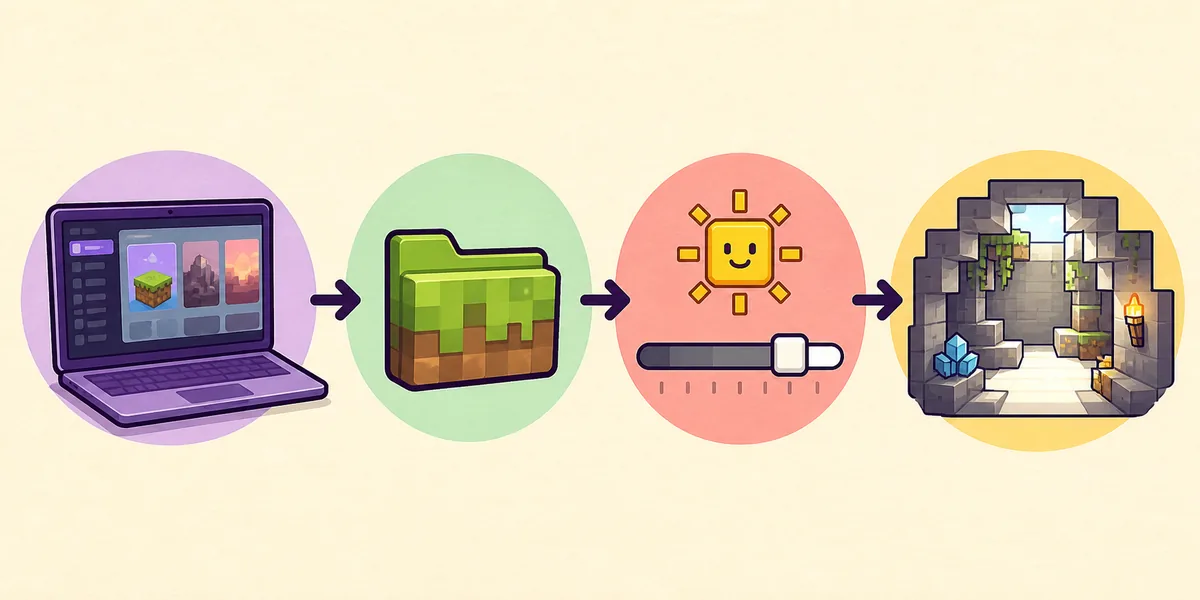
Launch the right installation
In SKlauncher, identify the Minecraft profile you actually use. Do not adjust one instance and test another.
Open Video Settings
Pause the game, open Options and Video Settings, then find Brightness or Gamma in the active Minecraft version.
Raise it gradually
Move the control upward, return to the world and compare a dark cave, night surface and Nether area.
Keep a working baseline
Record the original value before trying a file edit, shader or mod so you can undo one change at a time.
SKlauncher is not the gamma switch
If a guide tells you to replace the launcher or install an APK just to brighten Minecraft, stop. Brightness changes should start inside the selected Minecraft profile and use a known loader-compatible option when vanilla settings are not enough.
Adjust the Minecraft profile used by SKlauncher
SKlauncher can keep multiple Minecraft versions, loaders and instance directories. That matters because the visible setting belongs to the profile you launch, and a separate profile may have its own options.txt, shader settings and mod list. If you keep a vanilla installation and a Fabric or Forge installation, test the one that produces the dark scene before copying any configuration.
For a clean check, temporarily disable the shader pack, use the same resource pack on both tests and load a copied world. If the vanilla profile is bright enough but the modded profile is dark, the problem is more likely a shader, renderer or resource-pack setting than the SKlauncher download itself.
Open the installation manager
Select the profile used for the test and note its Minecraft version, loader and game directory.
Run a vanilla comparison
Launch without a shader or optional visual mod, change Brightness, then revisit the same dark location.
Restore visual add-ons one at a time
Re-enable the resource pack, shader or client mod separately so you can identify which layer changes the scene.
Keep profiles isolated
Use separate directories for major loader combinations instead of copying unknown options between installations.
Understand the options.txt gamma limit
Minecraft stores many video and control preferences in an options.txt file inside the active game directory. The file can help you confirm which profile you edited, but it is not a separate SKlauncher feature. Close Minecraft before making a backup, change only the gamma-related line if you understand the format, and start the same profile again to test.
Do not assume that a very large number such as gamma 1000 is a supported vanilla setting. The normal game setting has a finite range, and an out-of-range or incorrectly formatted value may be clamped, ignored or rewritten when Minecraft starts. If the file returns to its previous value, restore the backup and use the in-game control or a version-matched client-side mod instead of repeatedly forcing the text file.
- Back up options.txt before editing it.
- Confirm the file belongs to the active SKlauncher instance, not another profile.
- Close Minecraft before saving a manual change.
- Use the in-game setting as the source of truth after the next launch.
- Remove a manual edit if controls, shaders or rendering become unstable.
| Option | Best use | Limit or risk |
|---|---|---|
| Video Settings | Normal brightness adjustment | Bound by the game version's supported range |
| options.txt | Inspect or restore a profile setting | Wrong profile or out-of-range values may be ignored or reset |
| Gamma/fullbright mod | More visibility than vanilla allows | Must match Minecraft version and loader; server rules still apply |
| Shader settings | Lighting and visual style | Can change performance, contrast and the appearance of caves |
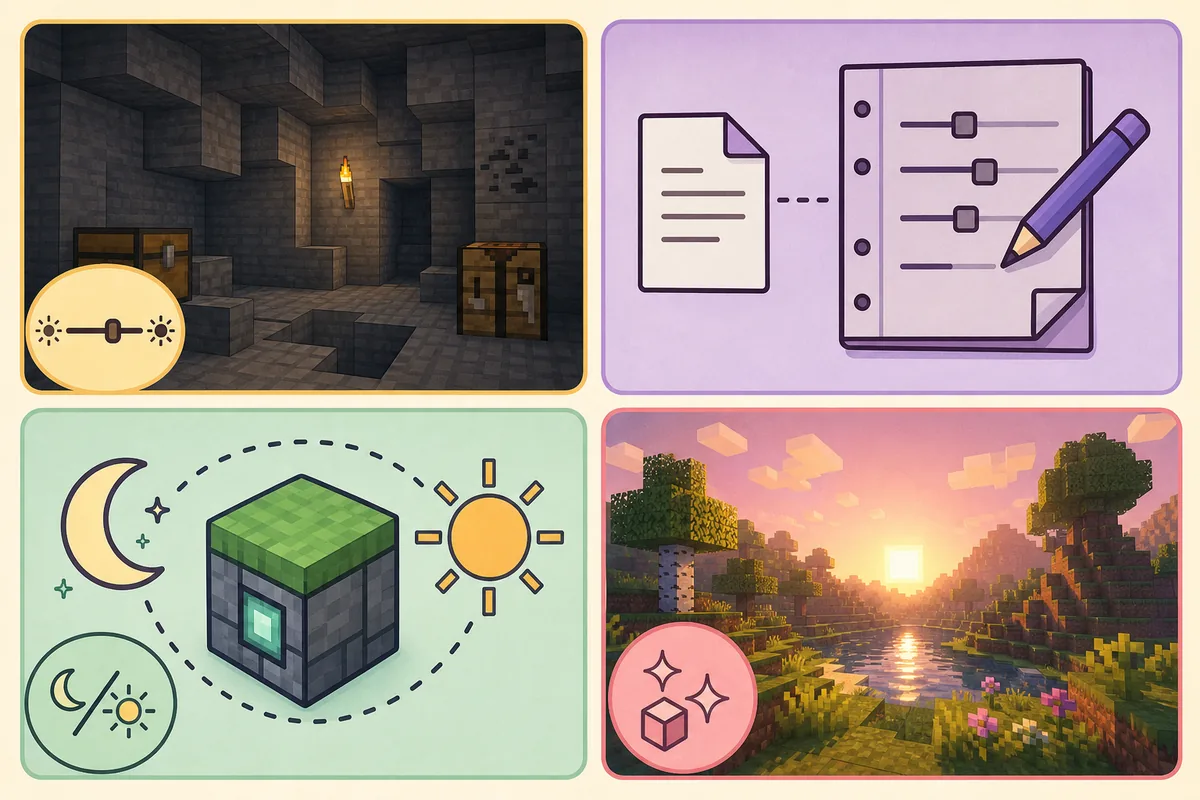
A text edit cannot fix every dark scene
If only one shader or resource pack looks dark, fix that visual layer first. A global options.txt edit can hide the cause and make a different profile harder to troubleshoot.
Choose a compatible fullbright or gamma mod carefully
When vanilla Brightness is still not enough, a client-side gamma or fullbright mod may be the next practical option. Use the project's Modrinth or CurseForge page, read the supported Minecraft versions and loader labels, and install it in a dedicated profile. A Fabric build is not automatically a Forge build, and a file that loads on one Minecraft patch can fail on the next.
A visual mod changes what your client renders; it does not grant a Minecraft license, bypass account checks or make a restricted server accept an unsupported client. Some servers prohibit fullbright-style advantages even when the change is client-side. Check the server rules, keep a clean profile for multiplayer and remove the mod when troubleshooting a connection or anti-cheat issue.
Lock the version pair
Write down the Minecraft version and loader before downloading a gamma or fullbright mod.
Use an established project page
Prefer the author's Modrinth or CurseForge listing over an EXE, APK, token collector or repost with an unknown installer.
Test a copied world
Open a non-critical world or a new test world before adding the mod to a main save.
Keep a clean fallback
Maintain one vanilla or normal-visual profile so you can separate gamma problems from loader and shader problems.
Do not download a brightness installer
Minecraft brightness changes should not require a random executable, browser extension or Android APK. A normal Java Edition mod is distributed with a documented version and loader requirement.
Fix caves that are still dark
If raising Brightness changes nothing, make the problem smaller. Test a new vanilla profile, then compare the same location with shaders disabled. Check whether a resource pack changes ambient colors, whether a performance renderer has its own brightness setting and whether the monitor's contrast or night mode is masking the result. The first useful clue is whether every profile is dark or only one installation.
Do not delete worlds or the whole SKlauncher directory as a first step. Back up saves, record the active profile path and remove only the last visual change. If Minecraft crashes after a gamma mod or shader update, return to the last working loader profile and follow the site's SKlauncher mods guide or shader guide for compatibility checks.
- Compare vanilla Brightness with shaders disabled.
- Check the active profile directory before editing options.txt.
- Test a clean resource-pack and mod list.
- Keep the last working profile and world backup.
- Use the official SKlauncher download page when reinstalling is genuinely necessary.
| Symptom | Likely layer | Next check |
|---|---|---|
| Every profile is dark | Game setting or display | Test vanilla Brightness and monitor settings |
| Only one profile is dark | Shader, resource pack or mod | Disable the last visual change |
| Brightness resets | Wrong file or unsupported value | Restore the backup and use the in-game control |
| Game crashes after the change | Loader/mod mismatch | Return to the clean profile and verify versions |
| Server rejects the client | Server rule or authentication | Use the clean multiplayer profile and follow server rules |
Keep the launcher and game versions separate
SKlauncher version, Minecraft version, loader version and gamma setting are different pieces of the setup. Record each one before changing it, especially when moving between stable 3.2.18 and the separate 4.x channel.
SKlauncher gamma checklist
The reliable order is: choose the active SKlauncher profile → adjust Minecraft Video Settings → test the same cave → inspect options.txt only with a backup → add a loader-matched client-side mod only when vanilla brightness is not enough.
This guide was checked against first-party SKlauncher download sources on August 11, 2026. It does not claim that a particular 4.x package is the latest because the first-party 4.x page exposes different version mentions by platform.
- The active Minecraft profile was identified before changing brightness.
- Vanilla Video Settings were tested before a file edit or mod.
- options.txt was backed up and kept within its supported range.
- Any gamma/fullbright mod matches the Minecraft version and loader.
- A clean profile and world backup remain available.
Minecraft gamma and SKlauncher FAQ
Does SKlauncher have its own gamma setting?
No separate SKlauncher gamma switch is required. Launch the correct Minecraft profile, open Video Settings and adjust Brightness there. The launcher selects the instance; Minecraft stores the visual setting.
What gamma value should I use in Minecraft?
Start with the supported in-game Brightness control and choose a level that keeps caves visible without washing out the scene. Avoid copying an extreme number from a random guide; unsupported values can be ignored or reset.
Why does my options.txt gamma value keep resetting?
The file may belong to another SKlauncher profile, Minecraft may have been open while it was edited, or the value may be outside the version's supported range. Back it up, close the game, confirm the active directory and verify the result in Video Settings.
Can I use a fullbright or gamma mod with SKlauncher?
Usually, when the mod matches the exact Minecraft version and loader used by the profile. Download it from an established project page, test a copied world and check the rules of any server you join.
Does a gamma mod change what other players see?
A client-side visual change normally affects your rendered view, not the server's lighting data. It may still be restricted by a server's rules, so keep a clean profile for multiplayer and do not treat it as a bypass.
Is fullbright the same as a shader?
No. Fullbright or gamma tools mainly change visibility, while a shader changes the lighting and rendering style. Shaders can affect performance and need their own compatible setup; use the SKlauncher shader guide when that is the real goal.
Sources and verification
This guide uses current first-party information checked on August 11, 2026.
Official SKlauncher stable downloads Official SKlauncher 4.x download page Minecraft options.txt reference Gamma Utils project on Modrinth Gamma Utils project on CurseForge